The screenshots below are from our lyric video generator. It runs in the browser, so you can follow along in a second tab with your own song.
What you need before you start
- The song as an audio file. MP3, WAV or M4A all work. A finished mix is easier to time than a rough demo, because the vocal is clear.
- The lyrics. Plain text is enough. If you have an LRC file, you get a timestamp for every line for free, and an enhanced LRC adds word-level timestamps.
- A current browser. The editor is developed and tested in Chrome. Chrome and Edge give the smoothest export; Safari and Firefox should work too, though we have tested them less.
- The right to use the song. Make lyric videos only from music you own or have permission to use.
Step 1: Upload your song
Drag the audio file onto the upload box at the top of this page, or click the box to choose a file, then press Create lyric video. The file stays on your device. The browser decodes it and the editor shows its length and a waveform.
If a file will not load, the format is usually the reason. Convert it to MP3 or WAV and try again. Files up to 100 MB are accepted, which covers even a long track as an uncompressed WAV.
Step 2: Check the lyrics and timing
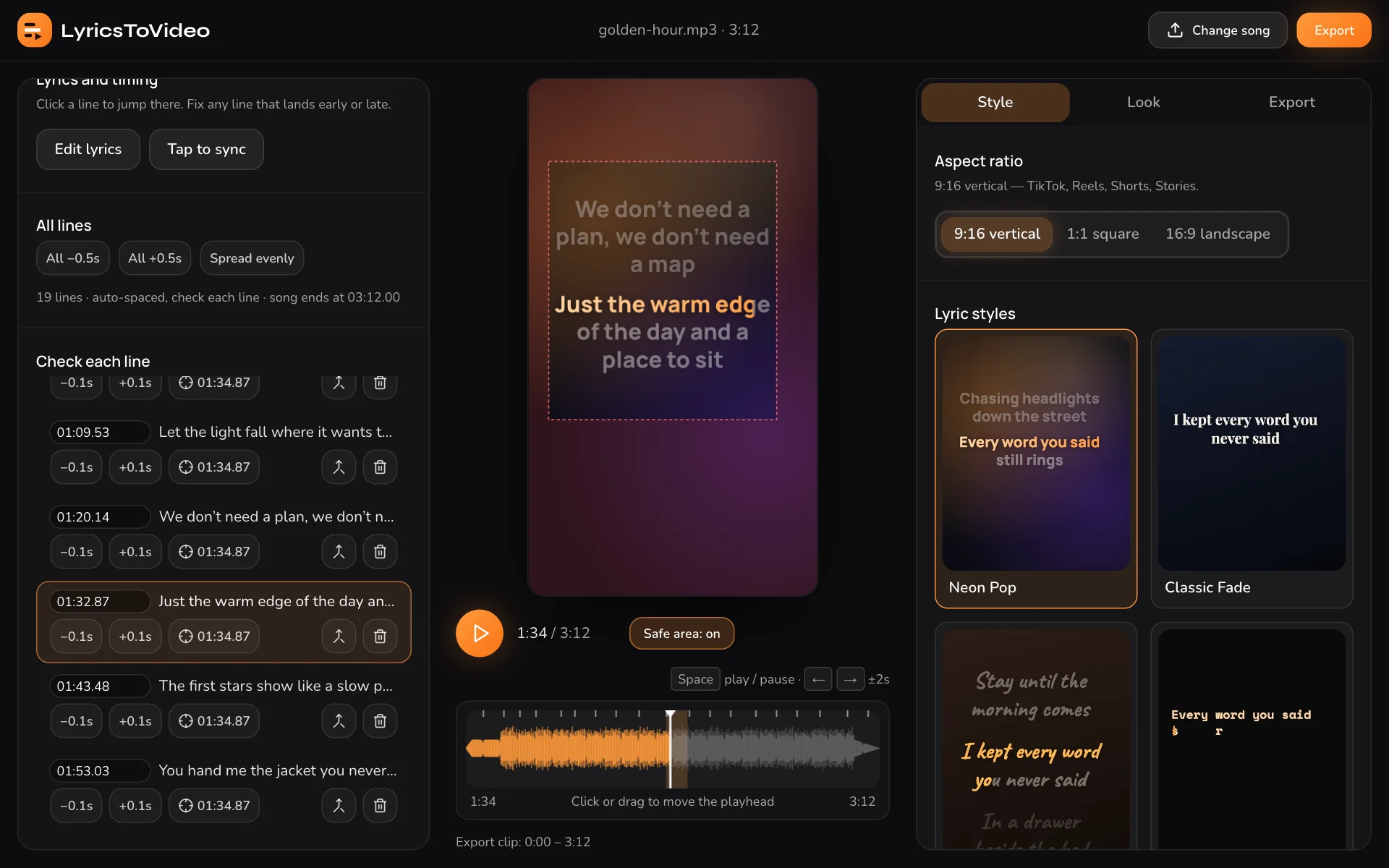
Open the Lyrics panel and paste the words. What happens next depends on what you paste.
- An LRC file already has a timestamp on every line, so each line keeps its own time. You are mostly checking.
- Plain lyrics get spread evenly across the song as a starting point. That is a guess, not a sync, so every line needs a look.
Section labels such as [Verse 1] and [Chorus] are removed for you. Leave a blank line between sections and the spacing guess improves, because the editor leaves a longer pause there.
Fix a wrong word
Press Edit lyrics, correct the line and apply. Lines you did not change keep their timing, including the lines after the one you edited.
Move a line in time
Click any line to jump to it. Then pick whichever of these is quickest:
- Press −0.1s or +0.1s to nudge the line.
- Pause exactly on the first word and press the target button to snap the line to that moment.
- Type a new start time into the box on the line.
- Or use Tap to sync: while the song plays, press Space on the first word of each line. One listen sets every line.
Timing is set per line. For exact control over single words inside a line, bring an enhanced LRC file, which stores a timestamp for each word.
Stress a word
Put asterisks around any word you want to hit, like *this*. It lights up in the highlight color and pops larger the moment it is sung. Rap verses use this for punchlines.
Fast verses
When a verse moves too fast to check by ear, pause and step through it with the arrow keys, two seconds at a time, and set each line while paused. Dense rap needs word-level highlighting on top of that. Our rap lyric video maker page covers that case.
Step 3: Choose a style
The Style panel has 11 looks in two groups. 6 are general styles and 5 are rap presets. Start from the genre: Neon Pop or Bubble for pop, Classic Fade or Indie Hand for ballads, the rap group for hip-hop.
A style fixes the font, the colors and how the words appear: filled in as they are sung, popped in one at a time, or typed out. Under Look you can override the text color and the highlight color, resize the text and move it up or down.
Safe areas. Turn on Safe area and red bands show where short-video apps place their buttons and captions. If the words cross into a band, make the text smaller or move it with the Vertical position slider. These are guides based on where the apps put their interface, not official specs. Watch the exported clip once inside the app before you post it.
Step 4: Preview and export
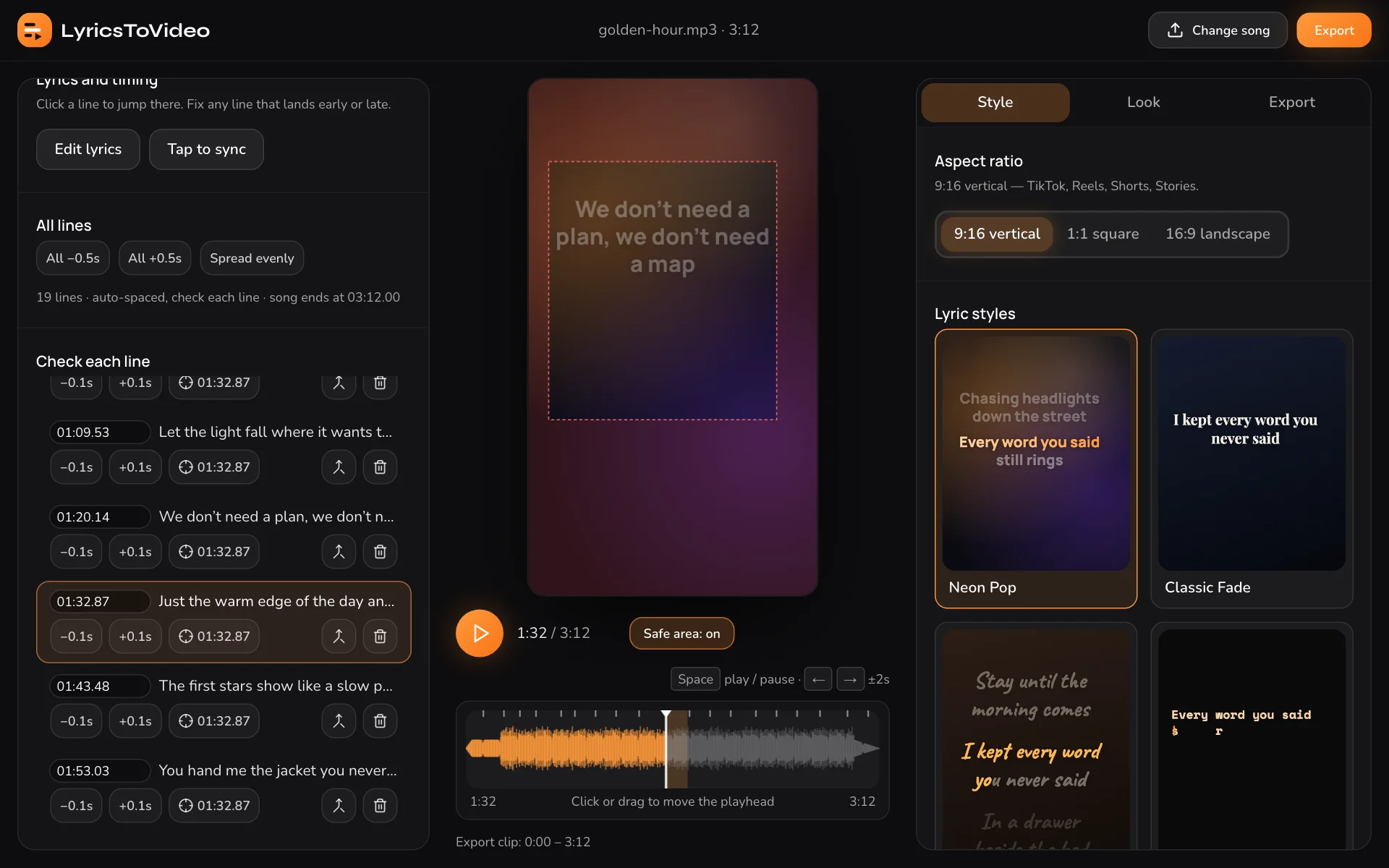
Play the song from the top once with Safe area on and check three things: every line appears on its first word, nothing sits under an interface band, and the smallest text is readable on a phone.
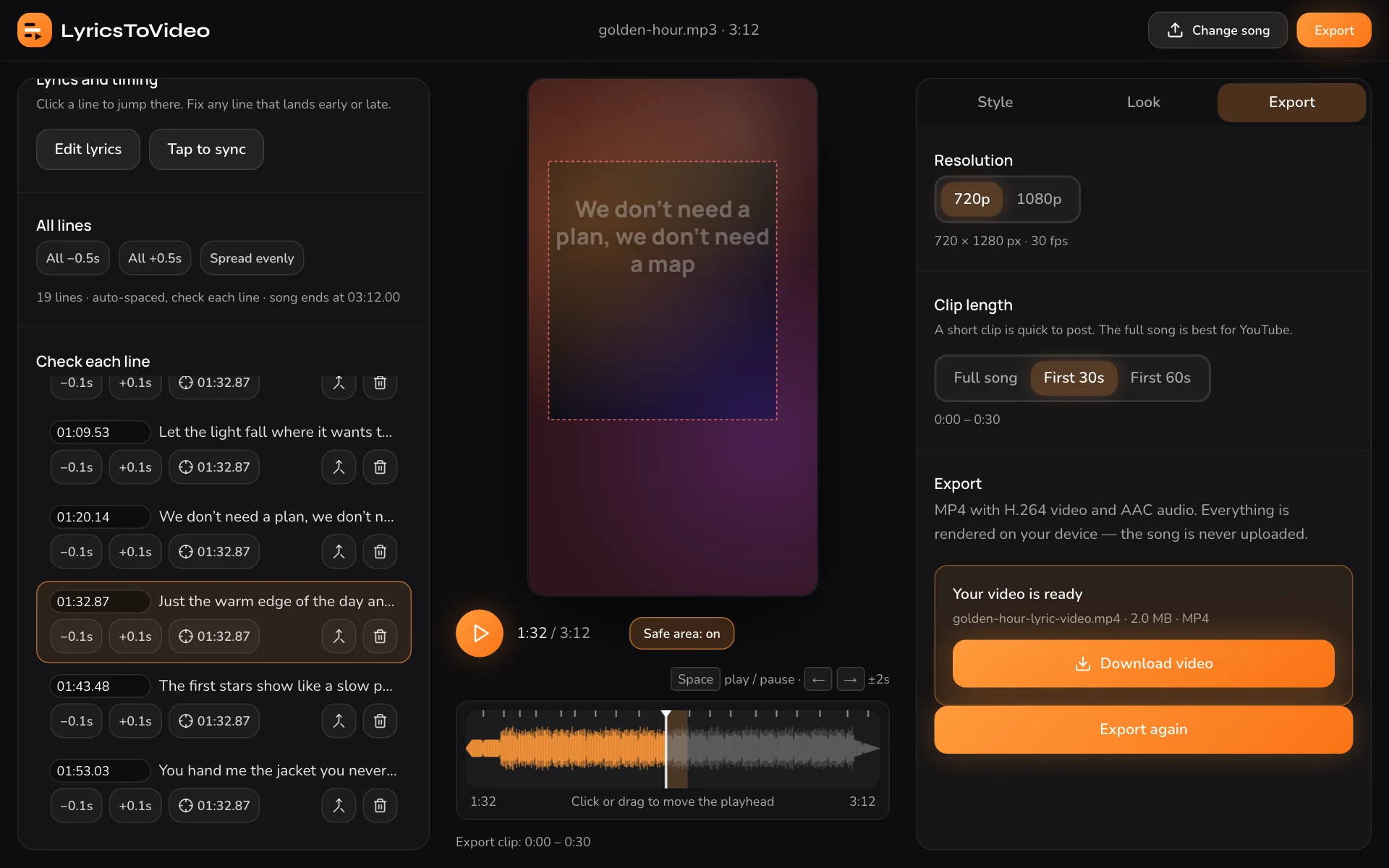
- Resolution. 1080p for anything watched on a TV or a computer. 720p gives a smaller file and is still sharp on a phone.
- Aspect ratio. 9:16 for TikTok, Reels, Shorts and Stories. 1:1 for feed posts. 16:9 for YouTube.
- Clip length. The full song for YouTube. The first 30 or 60 seconds for a short clip.
Press Export. The video is drawn and encoded on your device, so the wait depends on the length of the song and on your hardware, and the song is not uploaded anywhere. The result is a standard MP4 with H.264 video and AAC audio.
How to make a lyric video on your phone
The steps are the same on a phone. Open the page in the browser, pick a song from your files, paste the lyrics, choose a style and export. Tap to sync is the easiest way to set the timing on a touch screen, because you tap one button on the first word of each line instead of typing numbers.
Two things are harder on a phone. The panels are narrow, so checking a long lyric sheet takes more scrolling. And exporting uses the phone’s processor, so leave the tab in the foreground until the file is ready. If the timing gets fiddly, do the first pass on a laptop and check the result on the phone before posting.
How to make a lyric video for YouTube
Use 16:9 at 1080p and export the whole song. YouTube plays lyric videos in its regular player, where the title, the channel name and the progress bar sit over the top and bottom of the frame. Keep the lyrics near the vertical center, where nothing covers them.
Give the video a clear title with the song name and the word “lyrics”, and put the full lyrics in the description. You can add timestamps for verse, chorus and bridge too, which turns the description into a second way to navigate the song.
Other ways to do it
Phone editing apps
Apps such as CapCut, InShot and VN can add text over a song. You type each line, drag it to the right moment and repeat. For a three-minute song expect at least half an hour of placing, and longer if you want each word to appear as it is sung. The upside is that the same app also cuts your video.
Desktop editing software
DaVinci Resolve, Premiere Pro and Final Cut give you the most control. Text layers, keyframes and expressions can make words appear on the beat, and once you have built a template you can reuse it for every song. The first video takes an hour or more, most of it spent learning the software. Resolve has a free version; the others need a subscription or a one-time purchase.
An online lyric video maker sits between the two. It is faster than either and gives less control than desktop software.
Common mistakes
Every line is a little late
When the offset is the same everywhere, do not fix the lines one by one. Press All −0.5s to shift the whole song, then fine-tune the lines that are still off.
The words sit in the safe zone
The caption, the username and the row of buttons cover the bottom and the right edge of a short-video frame. Lyrics that look centered in the editor can end up underneath them. Turn on Safe area before your final check.
The font is too small
Text that reads well on a laptop is often too small on a phone. Check the clip on a phone, or make the text larger than feels necessary. If a line will not fit at that size, break it into two lines under Edit lyrics.
Low contrast
Thin white text disappears on a bright or busy background. Pick a darker background, or a style that draws an outline or a shadow around the words.